
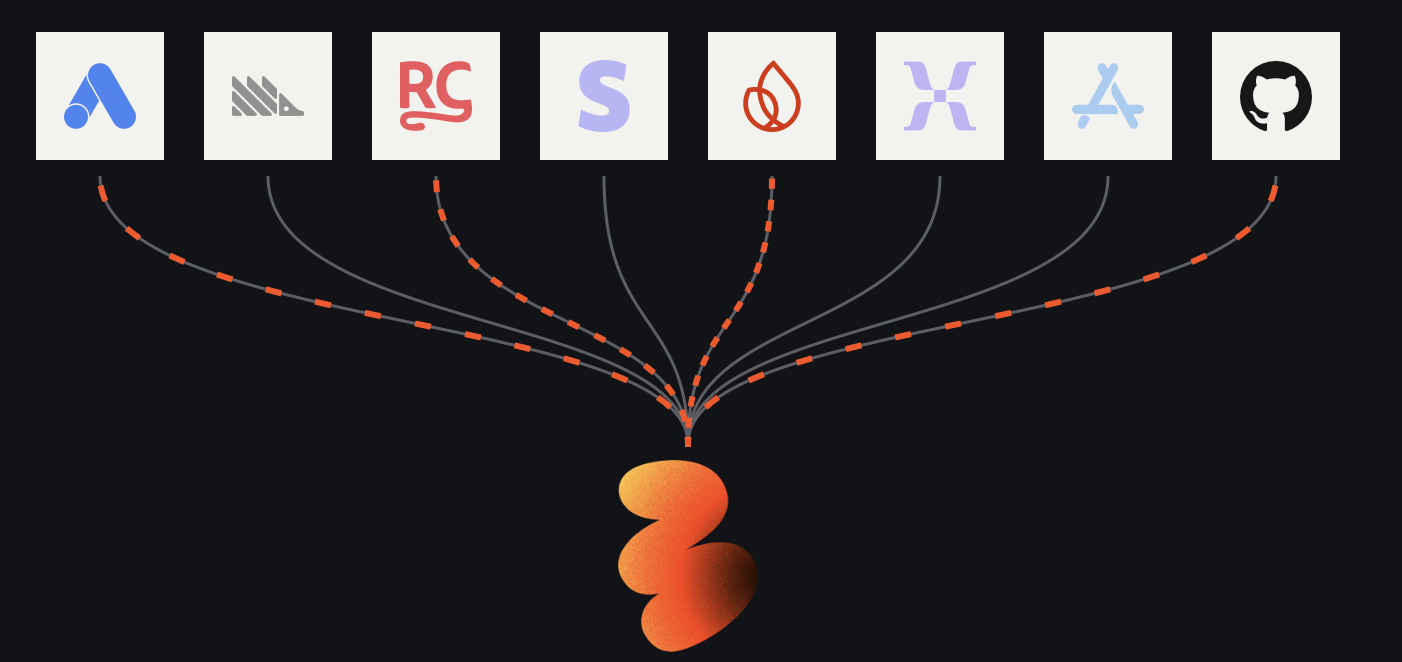
Before Bonnie, you used to juggle between different apps for different answers. One app for tracking user retention, one app for tracking funnels, and the list goes on. What if you could do all that on one screen? That's where Bonnie Ai comes in.
In today's blog I will be breaking down three steps to make sure you're using Bonnie to the max.
Step 1: The setup
Open Settings in the sidebar and choose Connectors.
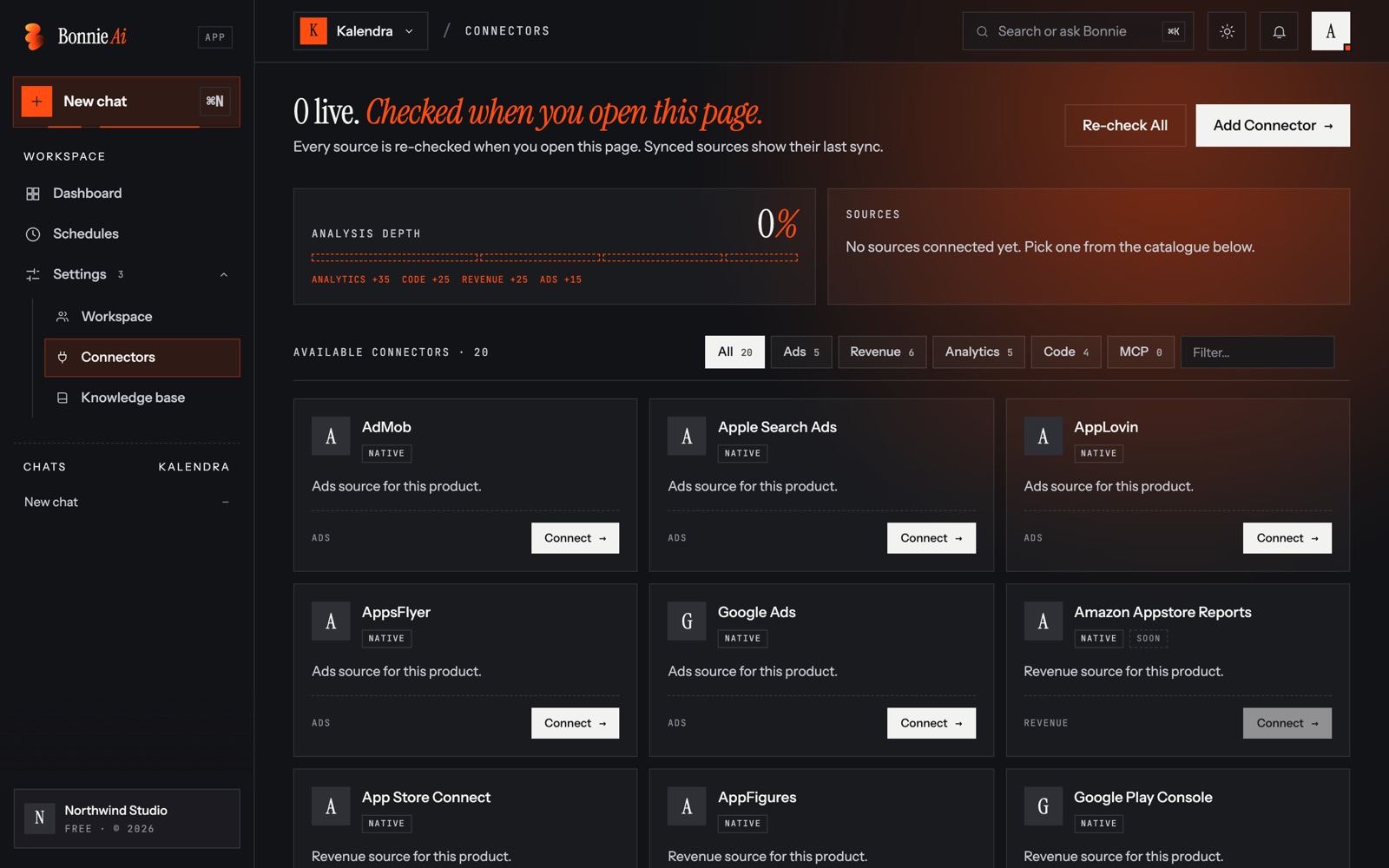
Select the connector you want, such as Google Ads. Fill in the details it asks for, then press Test & connect.
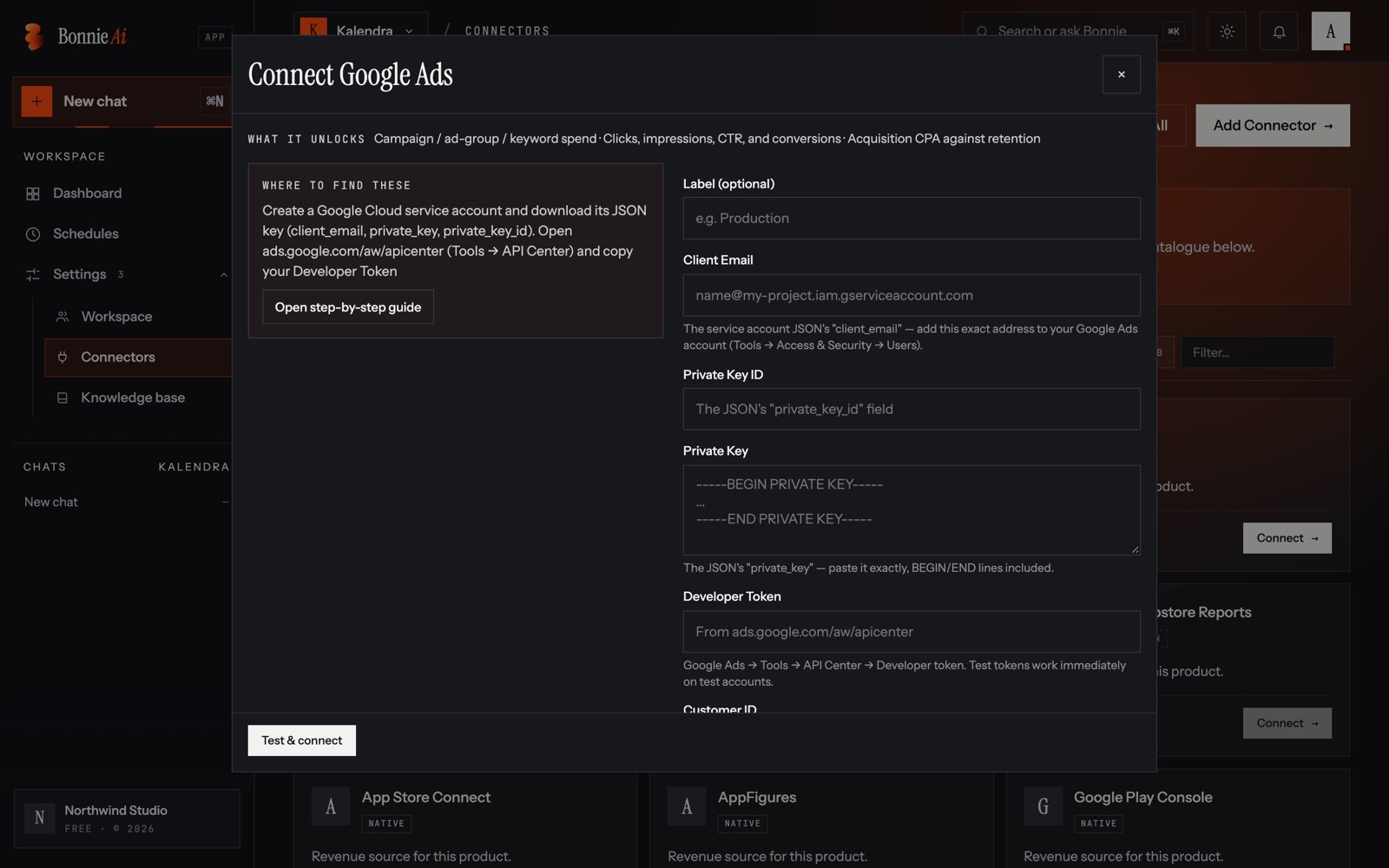
Now, Bonnie will import your data from Google Ads and keep it in its context layer. This helps Bonnie make better decisions with you.
Note: every key is encrypted. Our servers use your keys to fetch your data, and the AI only receives the data that comes back, never the key itself.
Step 2: Know the right apps
Here are my suggestions for the perfect analytical ecosystem for your product if you are developing an app for the Google Play Store:
- Google Ads to see where users came from.
- PostHog to see where users dropped off.
- RevenueCat to see who is subscribing to you.
- GitHub to catch bugs in your code.
Step 3: Ask Bonnie the right questions
Copy the following questions according to the need described:
Daily or weekly health check
Analyze [insert product name] for [insert date(s) for inspection] and compare it with the recent baseline. Verify data from connected sources and the current published app. Report total and new downloads, active and new subscribers, discounted subscriptions, users, sessions, engagement, content consumption, install-to-subscription conversion, paywall performance, low-rated user feedback (3 stars or less), crashes, errors, playback issues, and UX problems. Investigate unusual changes and user drop-off points. Separate verified facts from hypotheses, flag unavailable data, and finish with the biggest findings and a prioritized Needs Attention list. Do not make assumptions.
Investigating a login issue in code
Investigate why [insert product name] logs [insert error event] for some users when login works fine on my device. Trace the login flow, inspect errors and logs, and identify the root cause with code evidence.
Investigating a purchase issue
Investigate this purchase issue in [insert product name]: [insert count] paywall opens, [insert count] purchase attempts, but 0 successful purchases. Trace the purchase flow, check the store and RevenueCat logs, and identify the root cause with code evidence.
Frequently asked questions
Which tools does Bonnie Ai connect to?
Bonnie Ai connects to tools like Google Ads, PostHog, Firebase, Mixpanel, RevenueCat and GitHub, as well as your own product database.
Is my data safe with Bonnie Ai?
Every key is encrypted. Our servers use your keys to fetch your data, and the AI only receives the data that comes back, never the key itself. How we protect your keys.
Do I need an engineer to use Bonnie Ai?
No. Once your tools are connected, anyone on the team can ask Bonnie Ai a question and get the answer, without waiting on an engineer to pull the numbers.